
AI Chat
Chat with 14 LLM providers or any OpenAI-compatible endpoint, let the model call MCP tools with your approval, see timing and token usage per reply, and test without spending tokens against the AI mock server.
The AI Chat editor is a streaming chat client for language models. You pick a provider, a model and an endpoint, type a prompt, and the reply appears as it is generated. It is meant for trying an endpoint, a gateway or a model the way you would try an API: you see the status, the time to the first token, the duration and the token usage of every reply.
The request goes out from the Node main process, using its own streaming engine for OpenAI-compatible and Anthropic APIs. The renderer only receives the stream over IPC.
Opening an AI Chat tab
Click + New → AI Chat. The editor has a collapsible Settings section, a collapsible Tools section, the conversation, and a prompt box. Press Enter to send and Shift+Enter for a new line. Each tab is independent: provider, model, key, system prompt and conversation are per tab, so you can run two providers side by side.
Providers
The Provider list has 14 named providers and Custom:
| Provider | API shape |
|---|---|
| OpenAI, Google, xAI, DeepSeek, Mistral, Groq, Perplexity, Cerebras, Cohere, Fireworks, DeepInfra, Together, OpenRouter | OpenAI-compatible chat completions |
| Anthropic | Anthropic Messages API |
| Custom | OpenAI-compatible chat completions at a URL you give |
Choosing a provider fills the Endpoint URL with that provider’s default chat endpoint and offers a few model ids in the Model field. The Model field is a free text box: type any model id your account can use. The endpoint is always editable, and Reset to default puts the provider’s own URL back, which is how you point a named provider at a gateway or proxy.
Custom and self-hosted endpoints
Pick Custom and enter the full chat-completions URL, for example
http://localhost:11434/v1/chat/completions for Ollama or
http://localhost:1234/v1/chat/completions for LM Studio. Testnizer posts to
exactly the URL you enter. Type the model name by hand. Leave the API key empty
for a local server that needs none; no Authorization header is sent then.
Settings
| Field | What it does |
|---|---|
| Provider, Model, Endpoint URL | As above. {{variables}} work in the URL. |
| API Key | Sent as Authorization: Bearer … (OpenAI-compatible) or x-api-key (Anthropic). Supports {{variable}}. |
| System prompt | Sent with every request. Supports {{variables}}. |
| Temperature | 0 to 2. Empty uses the provider’s default. |
| Max tokens | Empty uses the provider’s default; Anthropic requires a value, so Testnizer sends 4096 when the field is empty. |
| Custom Headers | Extra headers for every request. A header named Authorization replaces the generated one, so the API key is optional when you set auth here. |
When a reply stops because the token limit was reached, the answer is marked Answer truncated: max tokens reached.
Ctrl+S saves the AI Chat configuration with the request (provider, endpoint, model, system prompt, headers, temperature, max tokens and the tool servers) and restores it when you reopen the request. Streaming is always on: replies are delivered as they are generated, and the Stop button ends a reply early while keeping the text received so far.
Where your API key lives
The key is stored encrypted with your operating system’s key store, one key per provider (for Custom, one key per server address, so two gateways never share one). It is not saved with the request, not written to the project file or to Git, and not kept in the app’s browser storage. Type a key once and every AI Chat tab that uses that provider can use it. If the system has no key store (some Linux setups), the key is kept in memory only, a note says so, and you enter it again after a restart.
Headers work differently: a credential header typed as a literal value
(Authorization, *-Key, *-Token) is used for the session but not saved. Use a
{{variable}}, ideally a secret one, to keep it.
Tools: letting the model call MCP servers
Open Tools to give the model MCP tools. Each entry is an MCP server:
- Add a saved MCP request… adds one from the project’s saved MCP requests.
- Add server adds an ad-hoc server by URL (Streamable HTTP or SSE) or by stdio command line, with headers or environment variables.
Each server has a Use this server switch, and Load tools lists its tools, each with its own checkbox, so you decide which tools the model can see. The model can then ask to call them while it answers; the result goes back to the model, and it continues. A single prompt makes at most 10 model calls; after that the reply stops with a notice and you can send another message to continue.
Approval comes first
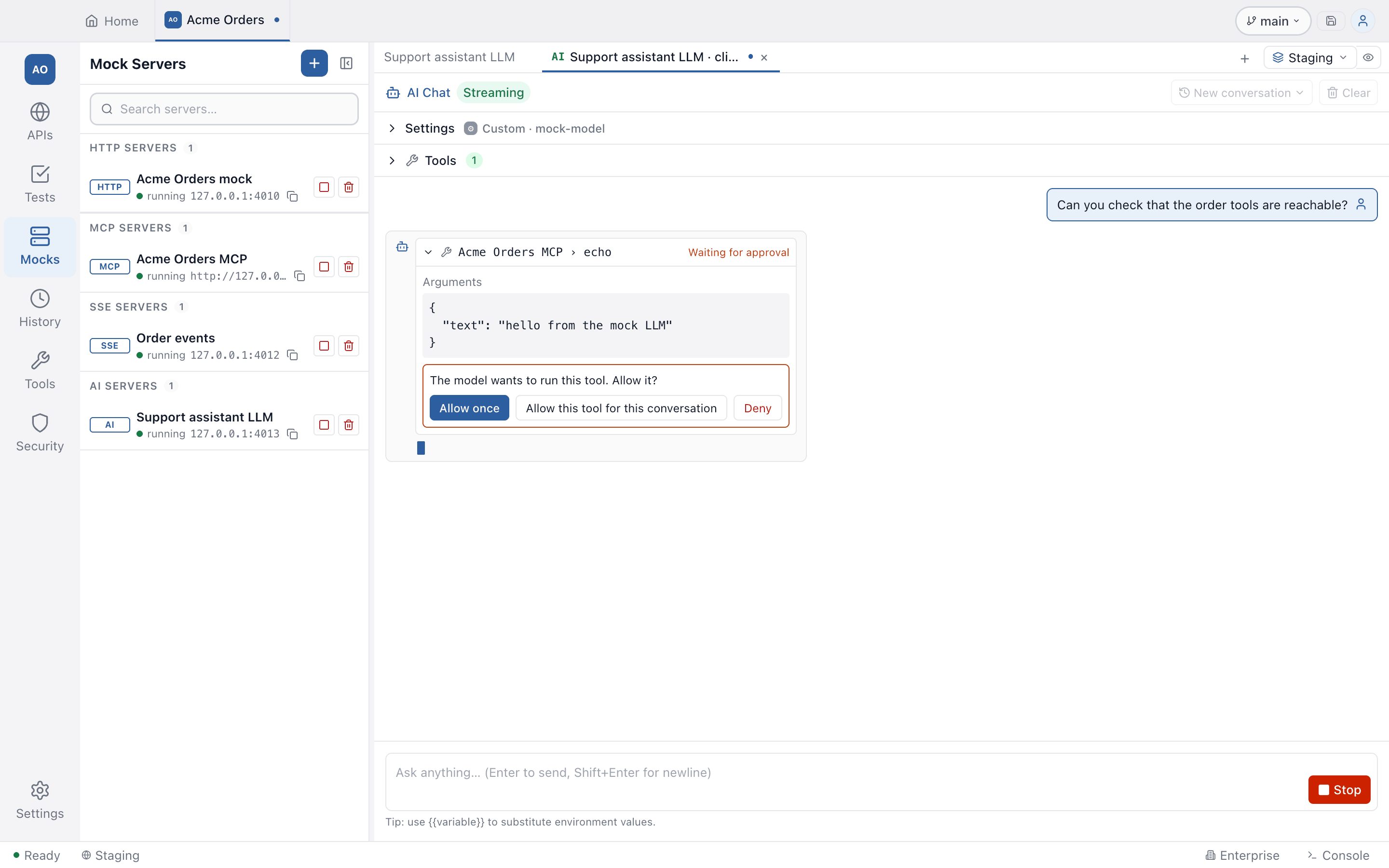
Every tool call asks you first. The card shows the server, the tool and the arguments, with three choices:
- Allow once
- Allow this tool for this conversation
- Deny
A tool whose arguments exceed 32,000 characters is not run, because the card could not show you what you would be approving.
Run tools without asking turns the questions off for the open tab only. It is never saved, not even in the browser storage, so it is off again in a new tab or after a restart. Tool output is untrusted text and can steer the model, which is why approval is the default.
stdio servers need your trust
A stdio MCP server is a command that runs on your computer. Before AI Chat starts
one, a This stdio MCP server is not trusted on this computer card shows the
command line and the environment variables it will run with. Values of
credential-named variables are hidden, and variables that can change what runs
(such as NODE_OPTIONS, LD_* or PATH) are flagged Can change what runs.
Choose Trust and connect or Skip this server. Trust is for that exact
command and environment, on this computer only. The same rule applies to the
Runner, Test Suites and Scheduler; see MCP.
A literal credential in an ad-hoc server’s URL, command line or environment is used for the session and not saved with the request.
Reading a reply
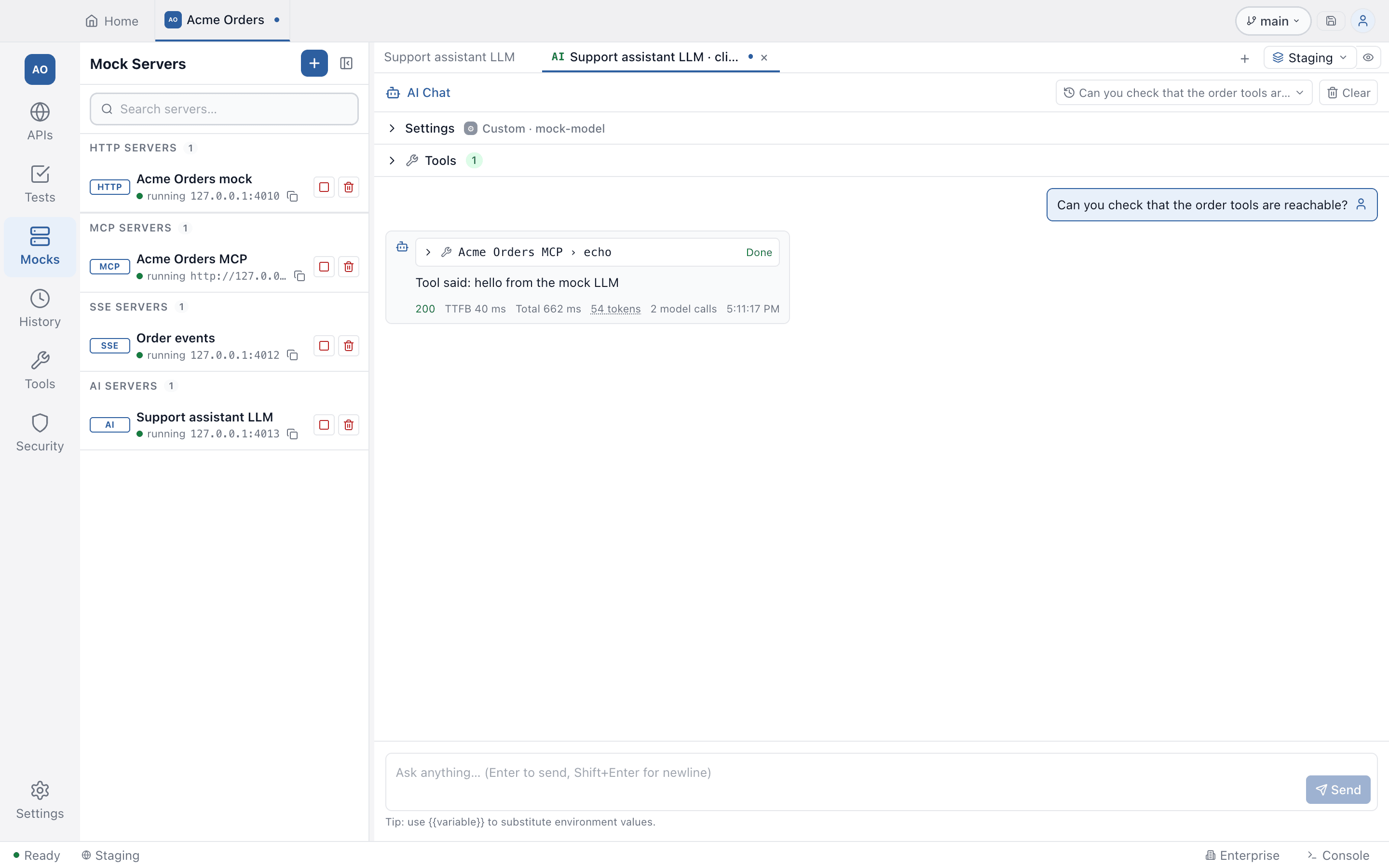
Under each reply you see a metrics row:
- the HTTP status of the call, in green for success;
- TTFB, the time to the first streamed token;
- Total, the duration of the model calls (time spent waiting for your approval or for a tool is not counted);
- the token count, with input, output, cached and reasoning tokens on hover. When a provider does not report usage the row says tokens: not reported. It never shows 0. If only some of the calls in a turn reported usage, the sum is marked partial;
- the number of model calls, when a turn made more than one, and the time.
Token usage is requested from the providers that document the option; for others it appears only if the provider sends it anyway.
When a provider fails mid-reply
If the provider sends an error after it has already started answering (for example an overloaded error in the middle of the stream), the partial text stays in the conversation and the error appears under it. The status chip turns orange and reads, for example, 200 · interrupted, because the request itself was accepted.
Conversations
A conversation is the list of messages of one AI Chat request. The conversation bar at the top of the editor lets you start a New conversation, switch between saved ones, rename and delete them. Clear empties the current one.
Conversations are stored on this computer only, in the local database. They are never exported, included in a Git commit or copied by project export. They are masked when written, so credentials and the values of secret variables do not end up in the stored text, and each conversation is capped at 2 MB (the oldest tool results are shortened first). Deleting a request, a folder or a project deletes its conversations.
Variables resolve in your prompts: type {{variable}} to substitute an
environment value.
Trying it without spending tokens
The Mocks panel has an AI mock server that answers like the OpenAI chat API and the Anthropic messages API, with streaming, token usage, tool calls and deliberate errors (429, 500, 401, mid-stream failures). Start & open in AI Chat tab opens this editor already pointed at the mock, on the Custom provider, or on the Anthropic provider for the Anthropic endpoint.
A chat tab opened from a mock never sends your saved provider key to it. The key field says so; a key typed in that tab is used there only, and Use saved key brings the saved one back if you want it. See AI (LLM) mock server.